3.15 Admin Notifications
3.15.1 What Are Admin Notifications?
Admin notifications are system-generated alerts that inform administrators about important events occurring on the platform. Notifications help admins stay up to date with investor activity without needing to manually monitor the relevant sections of the admin panel.
Each notification is tied to a specific event type and is delivered through one or more channels configured by the admin.
Admin notifications are separate from the Notifications tab in the sidebar, which manages notifications sent to platform users (investors).
3.15.2 Notification Channels
The platform currently supports two delivery channels for admin notifications:
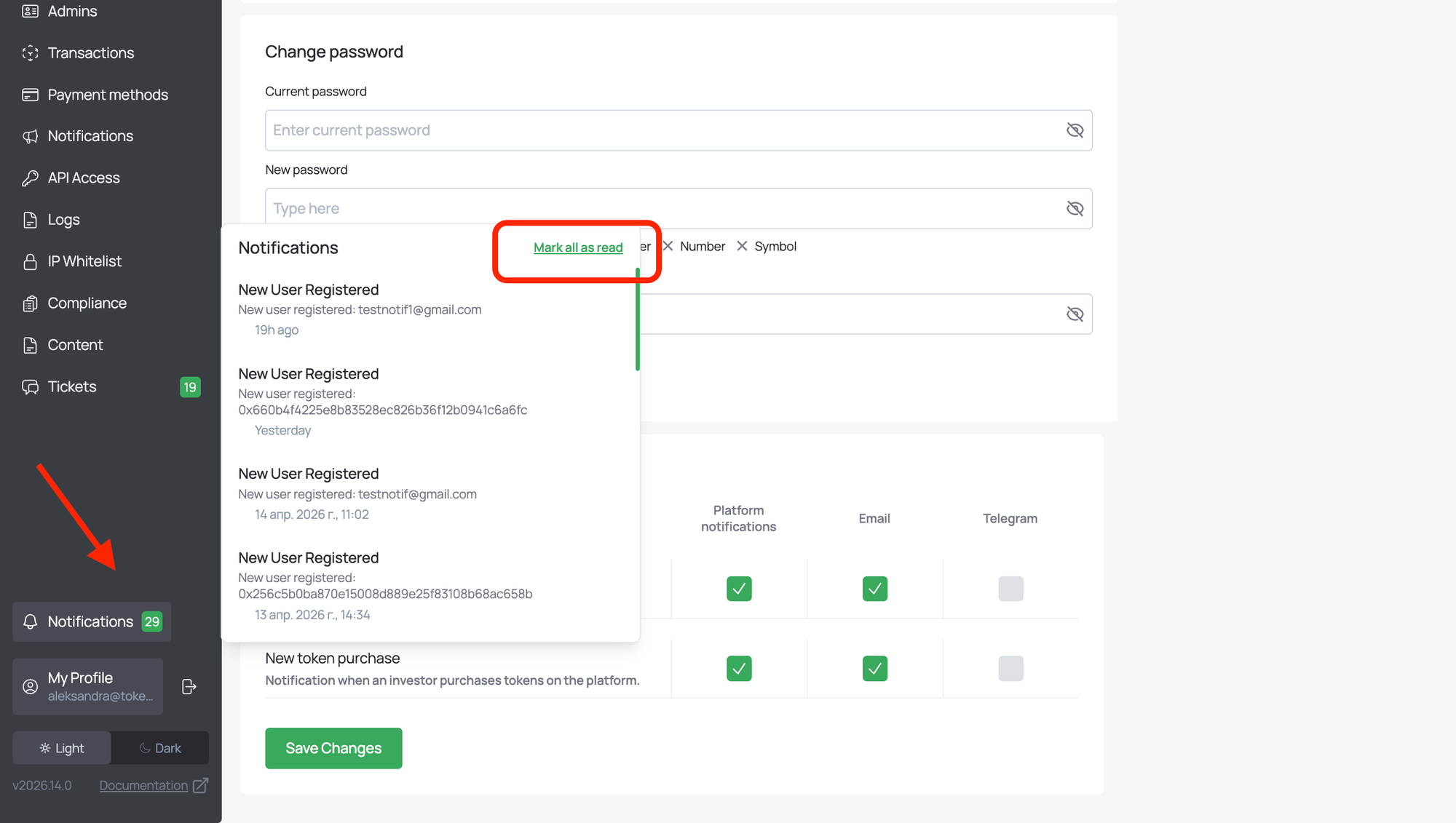
- Platform notifications. Delivered inside the admin panel. Unread notifications are indicated by a counter on the Notifications button in the sidebar. Clicking the button opens a dropdown panel listing recent notifications, with an option to Mark all as read.
- Email notifications. Delivered to the email address associated with the admin's account — the same email used to log in to the admin panel. The email address cannot be configured separately for notifications.
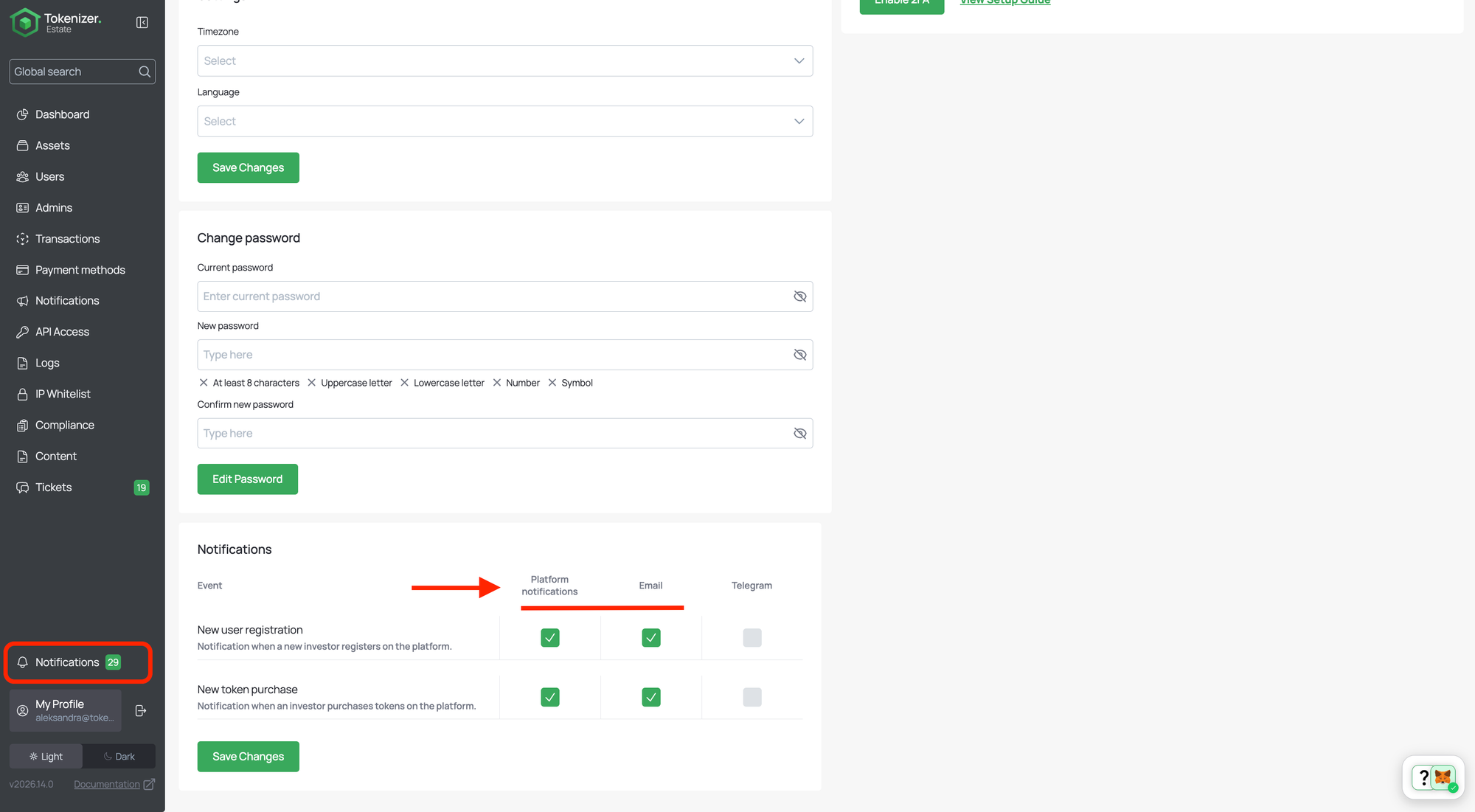
At this stage, two notification events are available:
- New user registration. Triggered when a new investor registers on the platform.
- New token purchase. Triggered when an investor purchases tokens on the platform.
3.15.3 Permission-Based Access to Notifications
Notification availability is directly linked to the admin's assigned permissions. An admin can only receive a notification for an event if they have permission to access the corresponding section of the admin panel:
- New user registration is available to admins with access to the Users tab.
- New token purchase is available to admins with access to the Transactions tab.
If an admin does not have the relevant permission, the corresponding event will not appear in their notification settings.
When an admin is granted a permission that unlocks a notification event, the associated channels are automatically opted in by default. The admin can disable them at any time in their profile settings.
3.15.4 Managing Notification Preferences
Notification preferences are configured individually by each admin from their own profile. Preferences set by one admin do not affect any other admin.
To manage notifications:
- Open My Profile in the sidebar.
- Scroll to the Notifications section.
- For each event row, select or deselect the checkbox under the desired channel (Platform notifications, Email).
- Click Save Changes to apply.
Opting out of a channel stops the delivery of that notification type through that channel. The admin will continue to receive notifications for any channels that remain selected.
3.15.5 Viewing Platform Notifications
Platform notifications are accessed via the Notifications button located in the sidebar. The badge next to the button displays the number of unread notifications.
Clicking the button opens a dropdown panel showing the notification list, including the event title, a short description (such as the new user's email or wallet address), and a timestamp. The Mark all as read action clears the unread counter.
Best Practices
- Review permissions before assigning notifications. Because notification availability depends on tab permissions, ensure that admins are granted only the permissions required for their role. Unnecessary permissions will result in unnecessary notifications.
- Use email notifications for time-sensitive events. Platform notifications require the admin to be logged in to the panel. For events that require a faster response, keep email notifications enabled.
- Audit preferences periodically. Encourage admins to review their notification settings regularly, especially after a change of responsibilities, to avoid missing relevant events or being overwhelmed by irrelevant ones.